Pages

Showing posts with label Summer. Show all posts

Monday, July 7, 2014

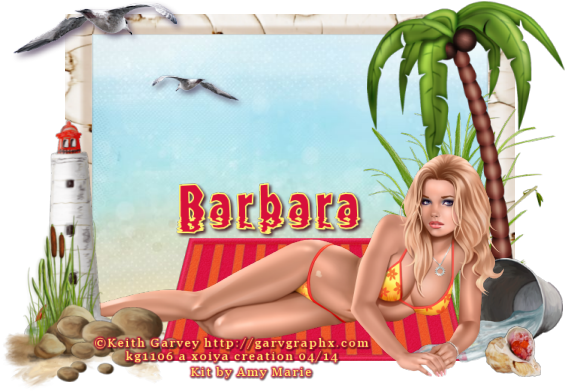
Sailing Summers

Sailing Summers
©Barbara Butler
July 2014


Supplies:
Kit-Sailing Summers by Amy Marie.  This kit can be found at www.amymarieskits.com
Template-Template189 by HorsePlay's Pasture.  www.horseplayspasture.blogspot.com

Open the template and check to make sure it is at 72DPI.  Duplicate it and close the original.  Re size the canvas to about 800X800.  Delete the copyright, the word art and white background layers.

Layer 2:  Select all, float, defloat.  Paste Pp18 into the selection, select none.

Layers 8, 9, 11:  Merge the three together (you will have to move 11 and 9 down below the frames); select all, float, defloat.  Paste Pp17 into the selection, select none.

Layer 7:  Select all, float, defloat.  Paste Pp8 into the selection, select none.

Layer 4:  Select all, float, defloat.  Paste Pp11 as a new layer, invert the selection and hit the delete key.  Select none, close or delete the original layer.

Layer 3:  Select all, float, defloat.  Paste PP12 into the selection, select none.

Layer 14:  Select all, float, defloat.  Paste Pp5 as a new layer, invert the selection and hit the delete key.  Select none, close or delete the original layer.  Repeat this for Layer 13.  Merge the two together.  Now on Layer 15-Select all, float, defloat.  Go back to the merged layer and hit the delete key.  Select none.

Layer 6:  Select all, float, defloat.  Paste Pp11 into the selection, select none.

Layer 17:  Select all, float, defloat.  Paste Pp12 into the selection, select none.

Layer 16:  Select all, float, defloat.  Paste Pp12 as a new layer, invert the selection and hit the delete key.  Select none, close or delete the original layer.  Bring this to the top in the layer palette.

Layers 18, 12, and 10:  Merge them together; Select all, float, defloat.  Paste Pp9 into the selection, select none.

Layer 5:  Select all, float, defloat.  Paset Pp9 as a new layer, invert the selection and hit the delete key.  Select none, close or delete the original layer.

C/P Element 3 on to the canvas.  Re size it by 75% twice.  Place it on the left side.

C/P Element 9 on to the canvas.  Re size it three times once by 50% then by 75% twice.  Place it on the bottom right.

C/P Element 14 on to the canvas.  Re size it by 75% twice.  Place it behind Element 9 on the right side.

C/P Element 24 on to the canvas.  Re size it by 75% twice.  Place it on the bottom left and rotate it 15 degrees to the right.

C/P Element 29 on to the canvas.  Re size it by 75% twice.  Place it on the right side and in front of the other elements.

C/P Element 30 on to the canvas.  Re size it by 75% once.  Place it on the left side.

C/P Element 42 on to the canvas.  Re size it by 75% twice.  Place it on the top right.

C/P Element 47 on to the canvas.  Re size it by 45% once.  Place it on the top left and behind Element 30.

C/P Element 46 on to the canvas.  Re size it twice once by 45% then by 75%.  Place it on the bottom right and place it in front of the other elements.

C/P Element 49 on to the canvas.  Re size it twice, once by 45% then by 75%.  Place it on the right side of the lifeguard chair.

C/P Element 82 on to the canvas. Re size it by 75% twice.  Place it on the top right.

C/P Element 93 on to the canvas.  Re size it by 75% twice.  Place it on the top right.

C/P Element 77 on to the canvas. Re size it by 75% once.  Place it behind the lifeguard chair, duplicate it and move the duplicate over a little bit to the right.

C/P Element 120 on to the canvas.  Re size it by 85% once.  Place it behind the other elements.

Paste Tube(s) of choice on to the canvas.  Re size it if needed.  Place to your liking.

Add name and save as a pspimage.  Add any effects you would like.  Crop and re size the tag.  Save as a png and you are done.

Thank you for taking a look at my tut.  I hope you have enjoyed it.

Tuesday, June 17, 2014

Tropical Treasure

Tropical Treasure
©Barbara Butler
June 2014


Supplies:
Kit-Tropical Treasure by Amy Marie.  This kit can be found at www.amymarieskits.com
Template-190 by HorsePlay's Pasture.  www.horseplayspasture.blogspot.com

Open up the template and check to make sure it is at 72 DPI.  Duplicate it and close the original.  Delete the credit layer.  Re size the canvas to 800X800.

Layer 11:  Select all, float, defloat.  Paste Pp23 into the selection, select none.

Layer 6:  Select all, float, defloat.  Paste Pp24 into the selection, select none.

Layers 3&4:  Merge the two together.  Select all, float, defloat.  Paste Pp25 into the selection, select none.

Layers 7&8:  Merge together.  Select all, float, defloat.  Paste Pp22 into the selection, select none.

Layer 10:  Select all, float, defloat.  Paste Pp11 into the selection, select none.

Layer 2:  Select all, float, defloat.  Paste Pp10 into the selection, select none.

Layer 9:  Select all, float, defloat.  Paste Pp14 into the selection, select none.

Layer 14:  Select all, float, defloat.  Paste Pp1 into the selection, select none.

Layer 13:  Select all, float, defloat.  Paste Pp4 into the selection, select none.

Layer 12:  Select all, float, defloat.  Paste Pp5 into the selection, select none.

Layer 15:  Select all, float, defloat.  Paste Pp8 into the selection, select none.  Move to the top right corner.

C&P Element 1 on to the canvas.  Re size it by 65% once.  Place it on the left side of the word art.

C&P Element 15 on to the canvas.  Re size it by 65% once.  Place it on the bottom left.

C&P Element 22 on to the canvas.  Re size it by 55% once.  Place it on the bottom right.

C&P Element 30 on to the canvas.  Re size it by 55% once.  Place it behind the pineapple on the left side.

C&P Element 32 on to the canvas.  Re size it by 65% once.  Flip it horizontally and place it on the right side.

C&P Element 109 on to the canvas.  Re size it by 55% once.  Place it behind the elements on the left side.

C&P Element 55 on to the canvas.  Re size it by 65% once.  Place it behind the elements on the right side.

C&P Element 62 on to the canvas.  Re size it by 65% once.  Place it on the bottom right.

C&P Element 65 on to the canvas.  Re size it by 55% twice.  Place it on the left side of the pineapple.

C&P Element 94 on to the canvas.  Re size it by 55% twice.  Place on top of the beach paper.

Paste Tube(s) of choice on to the canvas.  Re size it if needed.  Place to your liking.

Add name and save as a pspimage.  Add any effects you would like.  Crop and re size the tag.  Save as a png and you are done.

Thank you for taking a look at my tut.  I hope you have enjoyed it.

Tuesday, May 20, 2014

Down By The Sea

Down By The Sea
©Barbara Butler
May 2014


Supplies:
Kit-Super E by Amy Marie.  This kit can be found at www.amymarieskits.com

New Image 800X600 72DPI

C&P Element 72 on to the canvas.  Re size it by 75% once.  Click on the inside with the magic wand, expand the selection and paste Pp5 as a new layer, invert the selection and hit the delete key.

C&P Element 14 on to the canvas.  Place it on the left side, and duplicate it.

C&P Element 27 on to the canvas.  Re size it by 75% once.  Rotate it 15 degrees to the left and place it on the left side.

C&P Element 39 on to the canvas.  Place it on the right side.

C&P Elemengt 6 on to the canvas.  Place it on the bottom right.

C&P Elemengt 9 on to the canvas.  Re size it by 75% once.  Flip it horizontally and place it on the left side.

C&P Element 23 on to the canvas.  Re size it by 75% twice.  Place it on the left side and behind everything else.

C&P Elemengt 41 on to the canvas.  Re size it by  75% once.  Place it on the bottom.

C&P Elemengt 42 on to the canvas.  Re size it by 75% twice.  Flip it horizontally and rotate it 30 degrees to the right.  Place it on the left side and behind Element 41.

C&P Element 66 on to the canvas.  Place it on the bottom and behind the other elements (except the shell frame).

Add a gradient glow to some of the elements to make them pop a little.  I added it to the shell frame, both set of leaves, and the leave element on the right side.  But this step is completely up to you.

Paste Tube(s) of choice on to the canvas.  Re size it if needed.  Place to your liking.

Add name and save as a pspimage.  Add any effects you would like.  Crop and re size the tag.  Save as a png and you are done.

Thank you for taking a look at my tut.  I hope you have enjoyed it.

Thursday, May 15, 2014

Summer Breeze


Summer Breeze
©Barbara Butler
May 2014


Supplies:
Kit-Splash of Summer by Amy Marie.  This kit can be found at www.amymarieskits.com
Mask-CM_BB_ForumStyleMask1_MBW.  This I do believe you can fine at the Creative Misfits Blog.

We're going be making a banner and avatar so for the banner open up a new image about 600X250 72DPI. 

Select all and paste Pp5 into the selection.  Select none.  Apply the mask and merge the mask group.  Apply an inner bevel with the following settings:  2, 9, 0, 1, 6, 0, 315, 50,30, white.

Add a new layer, select all and paste Pp9 into the selection.  Move this down below the mask layer.  Go to effects and under image effects go to seamless tiling and apply it with the default settings.

C&P Element 7 on to the canvas.  Re size it twice, once by 45% then by 75%.  Place it in the bottom left corner.  Bring it to the top.

C&P Element 15 on to the canvas.  Re size it by 65% three times.  Flip it horizontally and place it in the top right corner.

C&P Element 28 on to the canvas.  Re size it by 45% once.  Place it on the bottom right.

C&P Element 29 on to the canvas.  Re size it by 45% twice.  Place beside the sunglasses.

C&P Element 35 on to the canvas.  Re size it by 45% once.  Place it behind the flower on the left side.

C&P Element 36 on to the canvas.  Re size it by 50% twice.  Place it towards the right.

C&P Element 51 on to the canvas.  Place it on the right side. 

C&P Element 69 on to the canvas.  Place this in front of the dolphin so it looks like the dolphin is jumping out of it.

Add a new layer, bring this to the top and C&P Element 64 into the selection.  Go back to the sunglasses and the seashell on the right side and bring them to the top.  With the sunglasses re size them one more time by 50%.  Do the same witht the elements on the left.  Re size the flower again by 65%.

For the avatar draw out a 200x200 rectangle.  Close all the layers except the yellow paper.  On the yellow paper copy and paste this as a new image.  Add a new layer, select all and paste Pp5 into the selection, select none and apply the same mask as before merge the mask group.  Add the same inner bevel.  Paste your tube of choice and re size it as needed.  Crop the image back down to 200 (if the tube is too big).  Add another new layer Select all and paste Element 64 into the selection.  Select none.

Paste Tube(s) of choice on to the canvas.  Re size it if needed.  Place to your liking.

Add name and save as a pspimage.  Add any effects you would like.  Crop and re size the tag.  Save as a png and you are done.

Thank you for taking a look at my tut.  I hope you have enjoyed it.

Wednesday, May 14, 2014

Splash Of Summer

Splash of Summer
©Barbara Butler
May 2014


Supplies:
Kit-Summer Splash by Amy Marie.  This kit can be found at www.amymarieskits.com
Template-582MPM by Millies PspMadness

Open up the template and check to make sure it is at 72 DPI.  Duplicate it and close the original.  Delete the copyright layer.  Re size the canvas to 950X697.

Layers 1&2-Select all, float, defloat.  Paste Pp3(the one you want doesnt have Pp in front of it) as a new layer, invert the selection and hit the delete key.  Select none.  Close or Delete the original layers.

Layers 3&4-Select all, float, defloat.  Paste Pp5 as a new layer, invert the selection and hit the delete key.  Select none.  Close or delete the original layers.

Layer 5-Select all, float, defloat.  Paste Pp11 into the selection, select none.

Layer 6-Select all, float, defloat.  Paste Pp1 as a new layer, invert the selection and hit the delete key.  Select none.  Close or delete the original layer.

Layers 7&8-Select all, float, defloat.  Paste Pp14 as a new layer, invert the selection and hit the delete key.  Select none.  Close or delete the original layers.

Layers 9&10-Select all, float, defloat.  Paste Pp15 as a new layer, invert the selection and hit the delete key.  Select none.  Close or delete the original layers.

C&P Element 3 on to the canvas.  Re size it twice, once by 65% then by 75%.  Place it on the top left.

C&P Element 12 on to the canvas.  Re size it by 65% twice.  Place it on the top right.

C&P Element 17 on to the canvas.  Re size it by 65% twice.  Place it on the bottom right.

C&P Element 24 on to the canvas.  Re size it by 75% twice.  Place it behind the bear on the right side.

C&P Element 29 on to the canvas.  Re size it by 65% once.  Place it on the bottom left.

C&P Element 33 on to the canvas.  Re size it by 75% twice.  Place it on the bottom right.

C&P Element 36 on to the canvas.  Re size it by 75% three times.  Place it on the bottom right.

C&P Element 46 on to the canvas.  Re size it by 50% twice.  Place it on the bottom left.

Paste Tube(s) of choice on to the canvas.  Re size it if needed.  Place to your liking.

Add name and save as a pspimage.  Add any effects you would like.  Crop and re size the tag.  Save as a png and you are done.

Thank you for taking a look at my tut.  I hope you have enjoyed it.

Sunday, April 27, 2014

Elodie Orange Cream


Orange Cream
I used the artwork of Keith Garvey for this tag.


Sunset Beach
I used the artwork of Jose Cano for this tag.


Kit can be found at www.amymarieskits.com